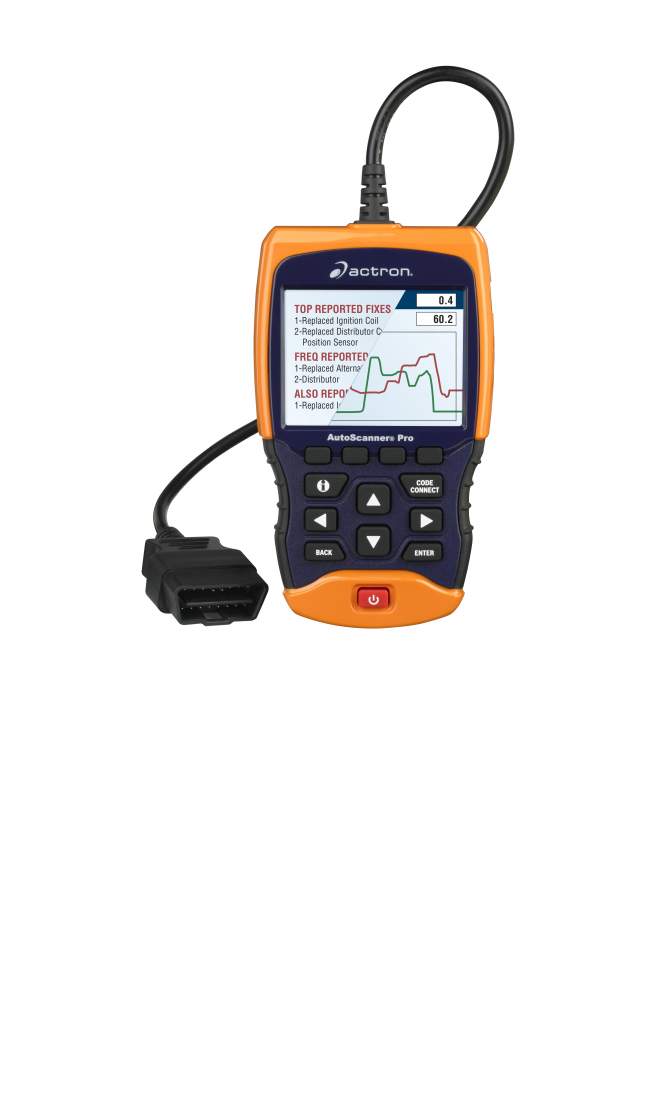
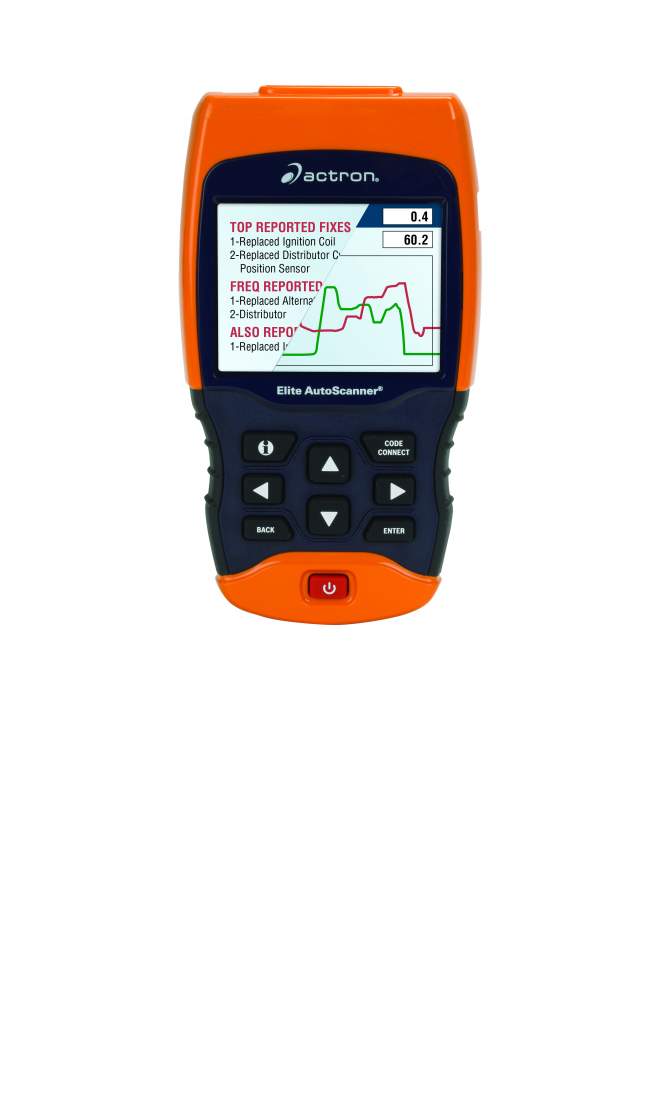
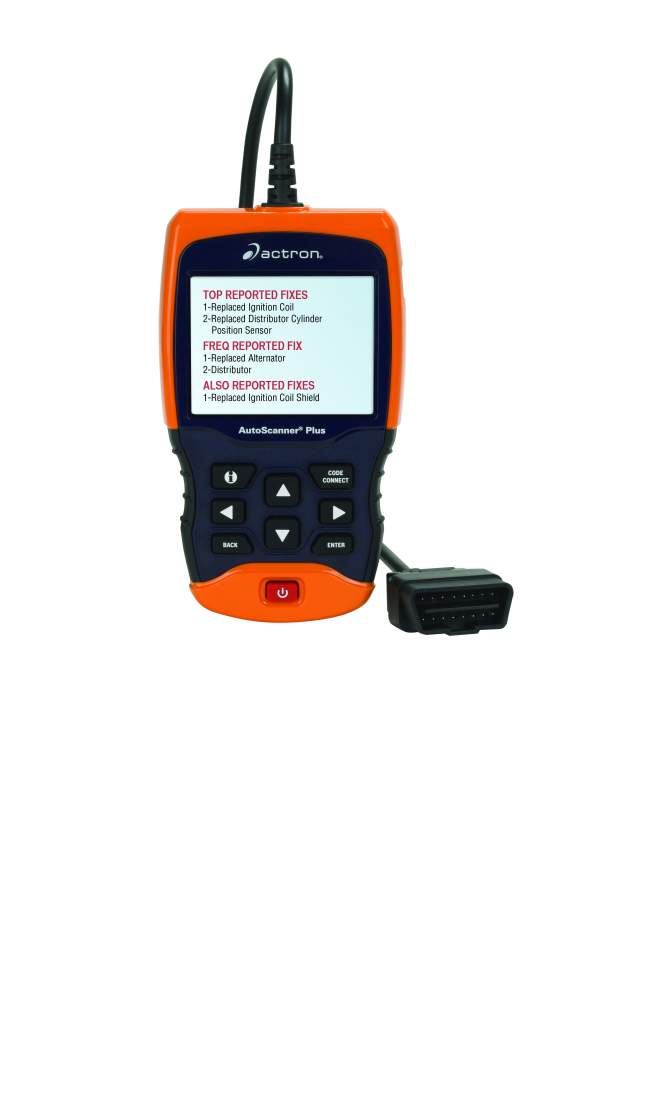
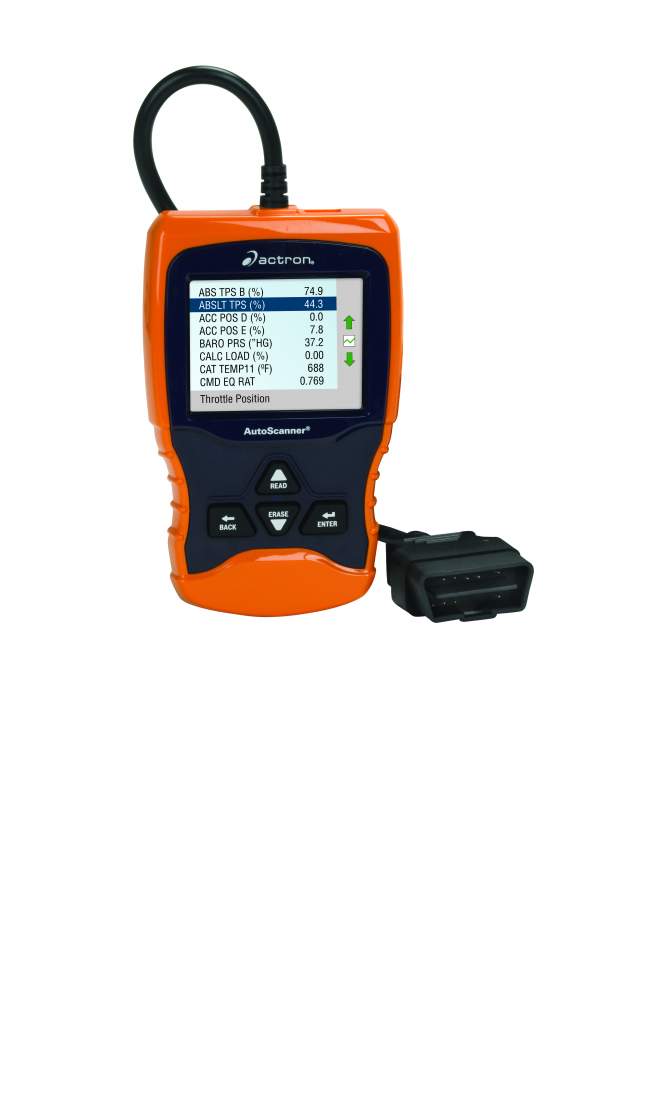
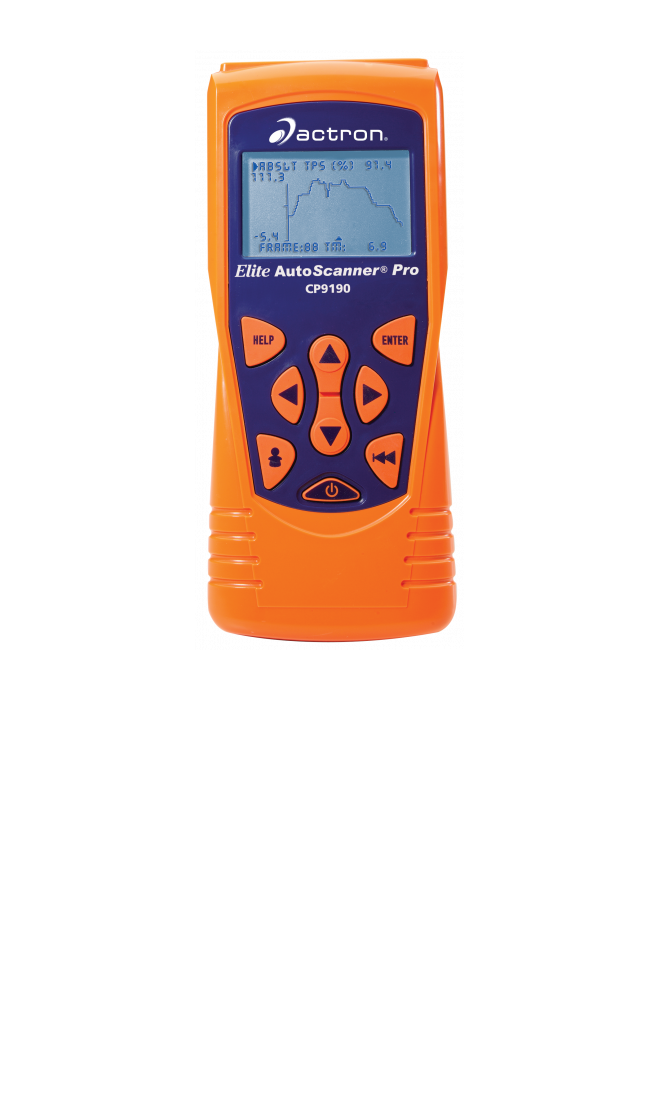
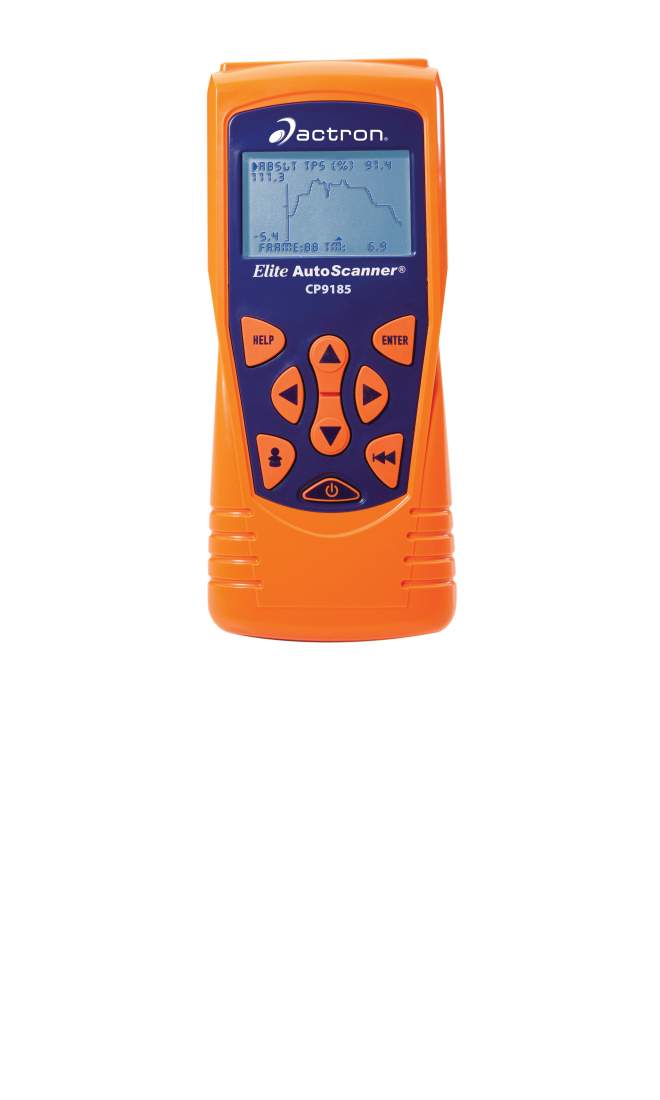
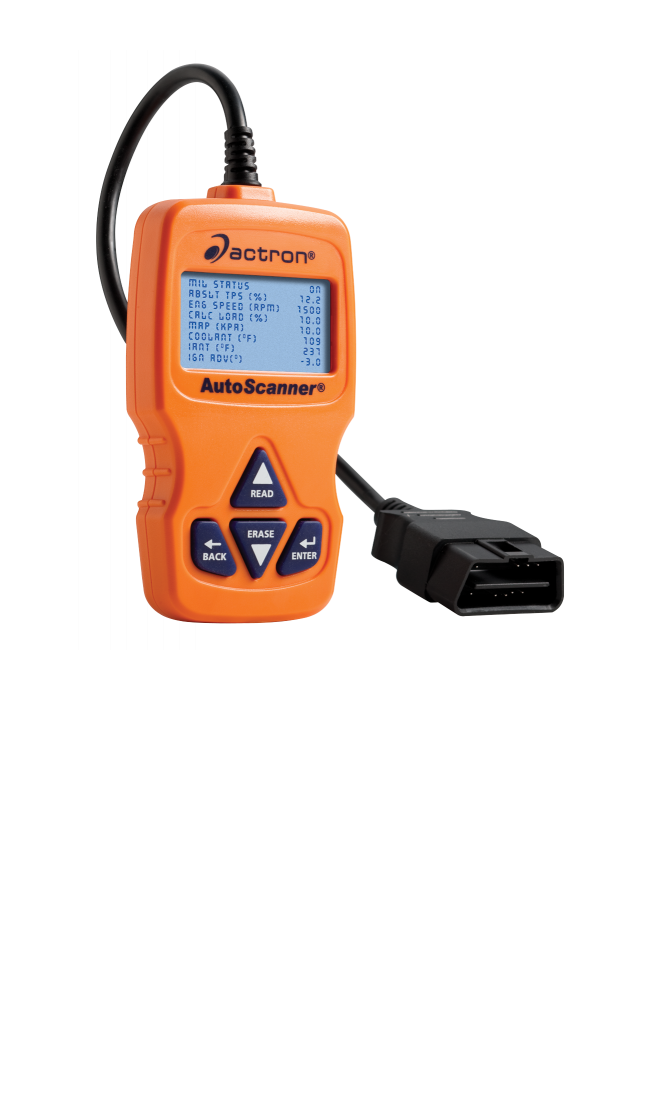
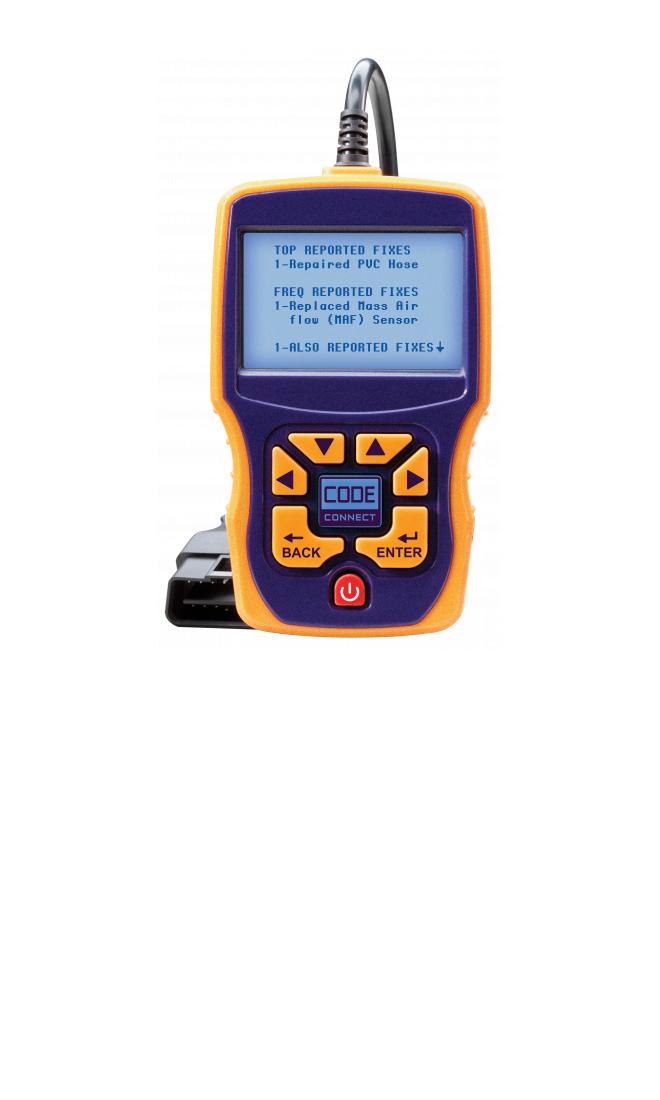
CP9135 OBD II AutoScanner™
There are currently no updates available for this model
The most current software version is 0f30
This software version is compatible with OBD II and CAN vehicles up to the present day
To determine the software version in your tool, follow these steps:
Plug the CP9135 into an OBD II vehicle and turn the key to he RUN position
Arrow down to 5) Tool Setup / Test and press ENTER
Arrow down to 5) Software ID and press ENTER
CP9145 SUPER AutoScanner®
There are currently no updates available for this model
The most current software versions are 40EEH and 361AH
These software versions are compatible with OBD II and CAN vehicles up to the present day
To determine the software version in your tool, hold down the ON/OFF button and the bottom line of text will display the software ID
CP9150 SUPER AutoScanner® Kit
There are currently no updates available for this model
The most current software versions are 40EEH and 361AH
These software versions are compatible with OBD II and CAN vehicles up to the present day
To determine the software version in your tool, hold down the ON/OFF button and the bottom line of text will display the software ID
CP9175 OBD II AutoScanner™
There are currently no updates available for this model
Download the USB driver and/or purchase the CP9175 Internet Update Cable here
The above link is to download the CP9175 USB cable driver only. The cable driver allows your computer to recognize the tool when an update becomes available.
CP9180 AutoScanner® Plus
Update Available!
The most current software version is 22EF
To determine the software version in your tool, follow these steps:
Power the tool on
Arrow down to System Setup and press ENTER
Arrow down to Tool Information and press ENTER
The SWID displayed is the software version in your tool
Software updates are performed using the Scanning Suite application.
It also contains user manuals, a link to our DTC Lookup web site, and it can be used to print
diagnostic information stored in the tool.
To determine the software version in your tool, follow these steps:
Power the tool on
Arrow down to System Setup and press ENTER
Arrow down to Tool Information and press ENTER
The SWID displayed is the software version in your tool
Software updates are performed using the Scanning Suite application.
It also contains user manuals, a link to our DTC Lookup web site, and it can be used to print
diagnostic information stored in the tool.
If your computer detects your tool as a “FT232R USB UART”, “FTDI Device”, or “USB Serial Converter”, use these instructions and download the driver below.
To determine the software version in your tool, follow these steps:
Power the tool on
Arrow down to System Setup and press ENTER
Arrow down to Tool Information and press ENTER
The SWID displayed is the software version in your tool
Software updates are performed using the Scanning Suite application.
It also contains user manuals, a link to our DTC Lookup web site, and it can be used to print
diagnostic information stored in the tool.
If your computer detects your tool as a “FT232R USB UART”, “FTDI Device”, or “USB Serial Converter”, use these instructions and download the driver below.
Free update now available for CP9449 ABS BrakeScan. New feature will allow the tool to erase ABS codes and turn off the ABS light. View the CP9449 Erase Codes Addendum below for more details.
Check the software version of your tool by pressing ENTER on Tool Information in the System Setup menu. If the SW ID is not 287A, download the update below.
Please install the ABS Updater / ScanLoader application before connecting the tool to your PC.
NOTE: This Update requires a standard USB-A/5 pin Mini-B cable. For your convenience, you can purchase this cable from our Accessories section on our website - or just click on the link below:
To determine the software version in your tool, follow these steps:
Power the tool on
Arrow down to System Setup and press ENTER
Arrow down to Tool Information and press ENTER
The SWID displayed is the software version in your tool
Software updates are performed using the Scanning Suite application.
Scanning Suite can also be used to print diagnostic information stored in the tool.
Click the links below to download the Scanning Suite software and instructions
NOTE: An update for more than one product may appear in the Scanning Suite Version List. The update selected must correspond with the tool model number
(the model number is located on the backside label of the tool). For example, when updating the CP9580 please select the CP9580 version and not the CP9580A.
If the incorrect version is selected, Scanning Suite will not proceed with the update.